---
title: Quickstart
description: Start Agent Lookout with npx, see your sessions, and jump to a Claude Code session that waits for your approval.
url: https://agent-lookout.thally.app/quickstart
---
# Quickstart
Start Agent Lookout with npx, see your sessions, and jump to a Claude Code session that waits for your approval.
## Before you begin
You need these, and about five minutes:
- Node.js 22.12 or later. Check with `node --version`.
- Claude Code, run in a Terminal or iTerm2 tab on a Mac, inside tmux on macOS or Linux, or in its VS Code extension. Agent Lookout supports it most fully, so these steps use it.
Not using Claude Code? Do step 1, then read [Using another agent](#using-another-agent) instead of steps 2 to 4.
## Steps
#### Start Agent Lookout
Run this from any folder that is not a clone of the agent-lookout repository. The first time, npm asks `Ok to proceed? (y)`: press Enter.
```bash
npx agent-lookout
```
```text
Agent Lookout is running at http://127.0.0.1:4777
It listens on this machine only. Press Ctrl+C to stop.
```
Open http://127.0.0.1:4777. Your sessions appear within a few seconds.
#### It did not start, or shows no session?
- **"Agent Lookout needs Node.js 22.12 or newer"**: install Node.js 22.12 or later, then run it again.
- **"Port 4777 is already in use"**: another program has the port. Run `npx agent-lookout --port 4778`, and open http://127.0.0.1:4778.
- **"Cannot find package 'tsx'"**: you ran it inside a clone of the agent-lookout repository. Run it from another folder.
- **The page shows no session**: see [No sessions appear](https://github.com/Olanetsoft/agent-lookout/blob/main/docs/GUIDE.md#no-sessions-appear).
#### Make a session wait for you
In another terminal, start Claude Code in a project and ask for something that runs a command:
```bash
cd ~/code/storefront
claude
```
```text
Run npm test and tell me what fails.
```
Claude Code stops to ask your permission before it runs `npm test`, unless your settings already allow it.
#### Read what it asks
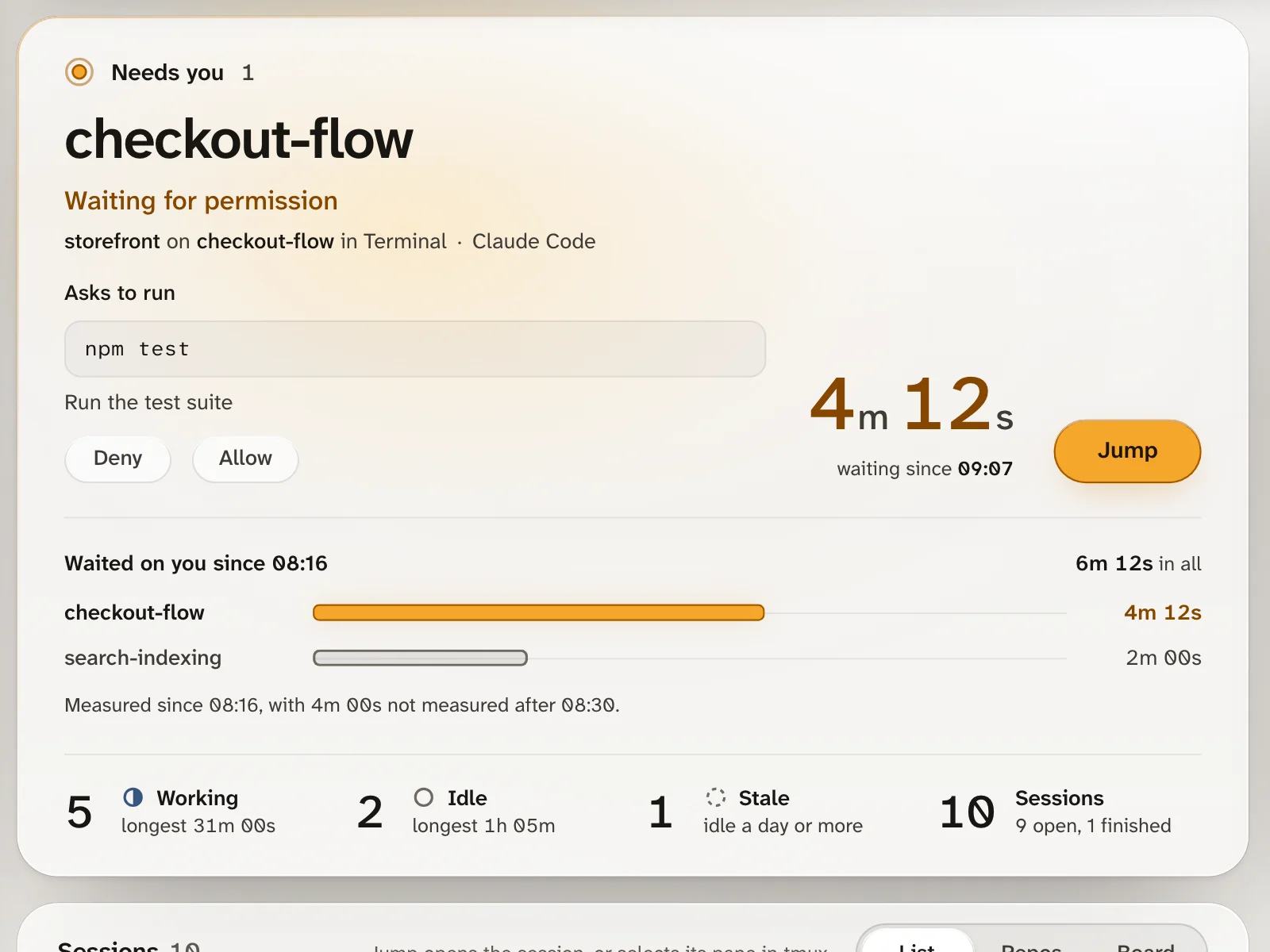
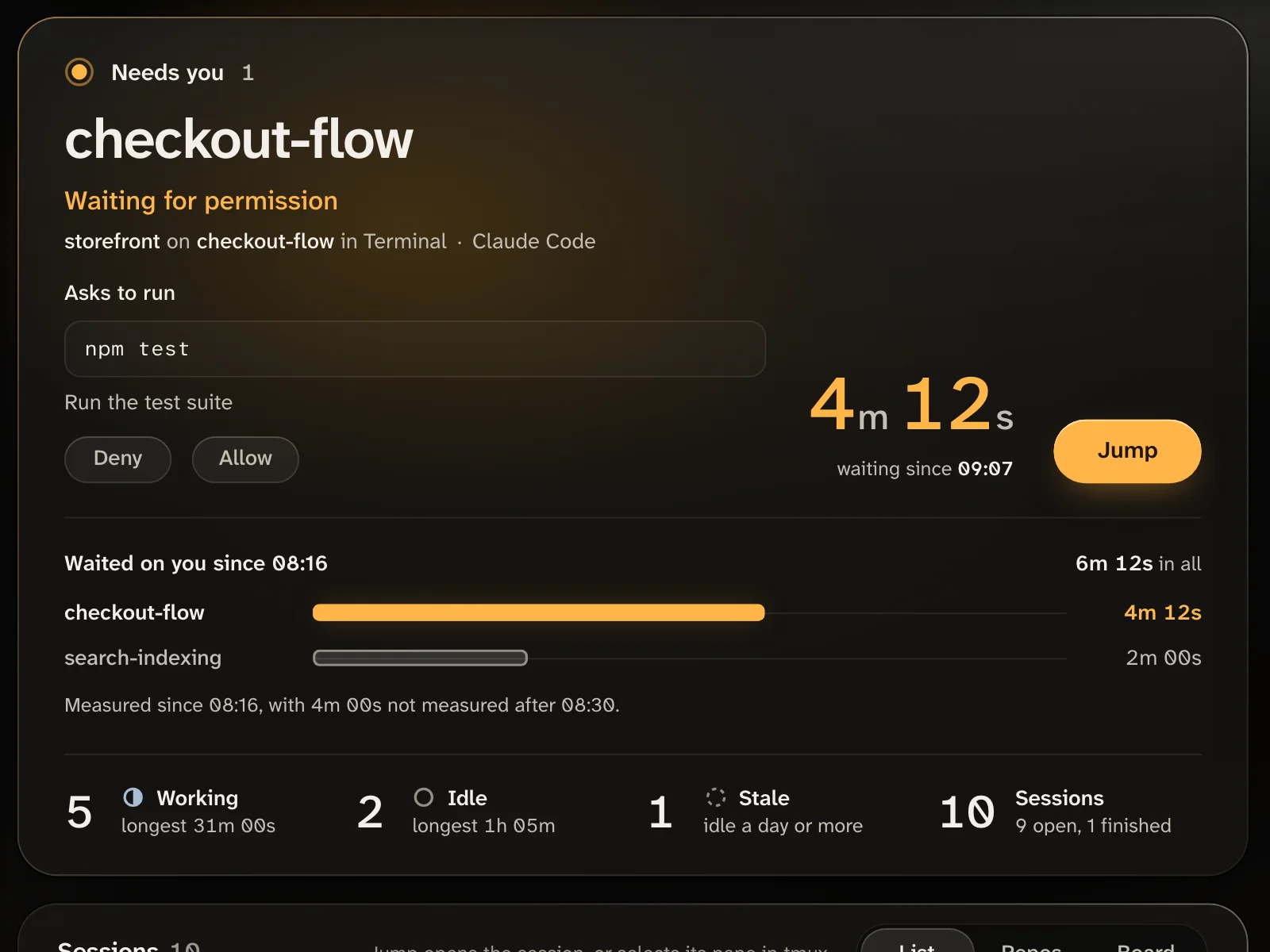
Within a few seconds the Needs you panel, at the top of the Overview, shows the session: Waiting for permission, what it asks, where it runs, and how long it has waited. With Agent Lookout's Claude Code plugin, it also offers Deny and Allow.
 #### Jump to it
Press Jump, beside the timer. Agent Lookout brings the session's Terminal or iTerm2 tab to the front, selects its tmux pane, or opens it in VS Code. The row then says "Switched to Terminal", "Switched to iTerm2" or "Selected in tmux". For VS Code it says nothing, and VS Code opens the session.
The first jump to a Terminal or iTerm2 tab makes macOS ask whether the app you started Agent Lookout from may control it. Choose Allow.
Answer the prompt in the session, and it leaves Needs you. If the session has no Jump button, see [Jump to a session's window](/guides/jump-to-window).
#### Stop Agent Lookout
Press Ctrl+C where it runs. Nothing keeps running. The history behind its charts stays in `~/.agent-lookout/history`; start it with `AGENT_LOOKOUT_HISTORY=off` to keep none.
## Using another agent
After step 1, start your agent and send it a prompt. Within a few seconds its session appears in the Sessions list, with no setup. Only Antigravity and the Antigravity CLI also show in Needs you, while they ask you to approve a step. The others show a session that waits for you as working, and none of them has Jump. [Supported agents](/#supported-agents) lists what each one shows, and what differs on Windows and Linux.
To see Needs you without Claude Code, write a status file by hand. It makes a test session that waits for you. Run this in another terminal on macOS or Linux:
```bash
mkdir -p ~/.agent-lookout/sessions
printf '{"agent": "my-agent", "name": "docs-site", "status": "waiting", "reason": "question", "pid": %d}\n' $$ > ~/.agent-lookout/sessions/my-agent.json
```
Within a few seconds, Needs you shows `docs-site`, with the reason Asked you a question. To end the session, delete the file:
```bash
rm ~/.agent-lookout/sessions/my-agent.json
```
The `pid` is that terminal's, so the session also leaves the page if you close the terminal first. On Windows, or to write the file from an agent's own code, use the Python or Node.js example in [Your own agents](https://github.com/Olanetsoft/agent-lookout/blob/main/docs/GUIDE.md#your-own-agents).
## Next steps
- [Jump to a session's window](/guides/jump-to-window): how Jump reaches a Claude Code session in each app, and what to do when it fails.
- [Answer a permission prompt](https://github.com/Olanetsoft/agent-lookout/blob/main/docs/GUIDE.md#answer-a-permission-prompt): install the Claude Code plugin to answer with Allow and Deny from the page.
- [Introduction](/): what Agent Lookout does, and what it leaves alone.
- [GitHub issues](https://github.com/Olanetsoft/agent-lookout/issues): ask a question or report a problem.
#### Jump to it
Press Jump, beside the timer. Agent Lookout brings the session's Terminal or iTerm2 tab to the front, selects its tmux pane, or opens it in VS Code. The row then says "Switched to Terminal", "Switched to iTerm2" or "Selected in tmux". For VS Code it says nothing, and VS Code opens the session.
The first jump to a Terminal or iTerm2 tab makes macOS ask whether the app you started Agent Lookout from may control it. Choose Allow.
Answer the prompt in the session, and it leaves Needs you. If the session has no Jump button, see [Jump to a session's window](/guides/jump-to-window).
#### Stop Agent Lookout
Press Ctrl+C where it runs. Nothing keeps running. The history behind its charts stays in `~/.agent-lookout/history`; start it with `AGENT_LOOKOUT_HISTORY=off` to keep none.
## Using another agent
After step 1, start your agent and send it a prompt. Within a few seconds its session appears in the Sessions list, with no setup. Only Antigravity and the Antigravity CLI also show in Needs you, while they ask you to approve a step. The others show a session that waits for you as working, and none of them has Jump. [Supported agents](/#supported-agents) lists what each one shows, and what differs on Windows and Linux.
To see Needs you without Claude Code, write a status file by hand. It makes a test session that waits for you. Run this in another terminal on macOS or Linux:
```bash
mkdir -p ~/.agent-lookout/sessions
printf '{"agent": "my-agent", "name": "docs-site", "status": "waiting", "reason": "question", "pid": %d}\n' $$ > ~/.agent-lookout/sessions/my-agent.json
```
Within a few seconds, Needs you shows `docs-site`, with the reason Asked you a question. To end the session, delete the file:
```bash
rm ~/.agent-lookout/sessions/my-agent.json
```
The `pid` is that terminal's, so the session also leaves the page if you close the terminal first. On Windows, or to write the file from an agent's own code, use the Python or Node.js example in [Your own agents](https://github.com/Olanetsoft/agent-lookout/blob/main/docs/GUIDE.md#your-own-agents).
## Next steps
- [Jump to a session's window](/guides/jump-to-window): how Jump reaches a Claude Code session in each app, and what to do when it fails.
- [Answer a permission prompt](https://github.com/Olanetsoft/agent-lookout/blob/main/docs/GUIDE.md#answer-a-permission-prompt): install the Claude Code plugin to answer with Allow and Deny from the page.
- [Introduction](/): what Agent Lookout does, and what it leaves alone.
- [GitHub issues](https://github.com/Olanetsoft/agent-lookout/issues): ask a question or report a problem.